RoomCast
Screen sharing and present screen: Turn any device into a secondary screen for your computer
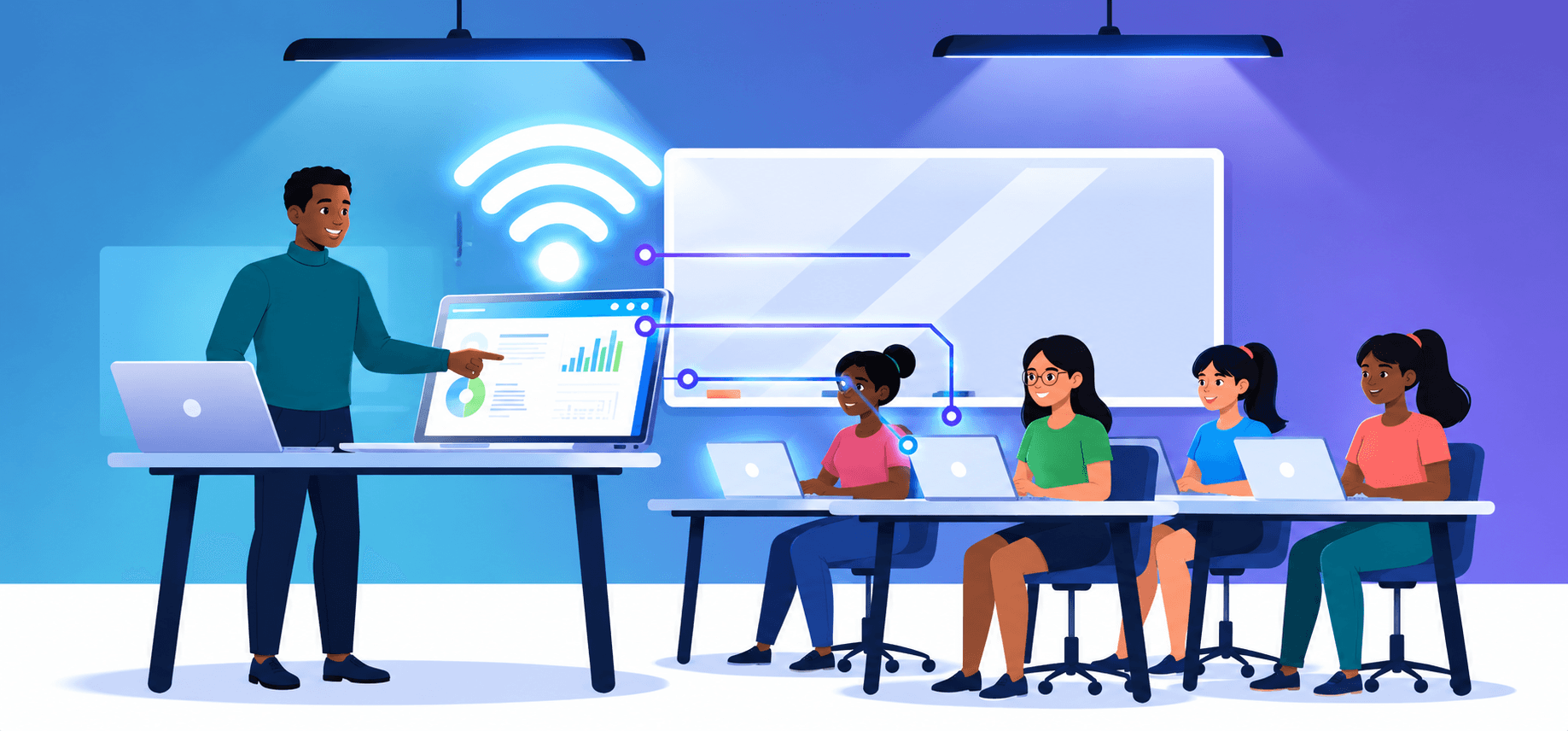
High-speed LAN streaming to laptops, tablets, and phones
Download RoomCast
Screen share and present screen to all devices
RoomCast features — Screen Sharing & Present Screen
Share Screen View
Share your computer's entire screen to any device that has a web browser.
Second Screen
Use any device with a web browser as a second screen for your computer.
Share App View
Limit RoomCast to share only a single application window to any connected audience browser.
Teleprompter on Any Device
Use flip screen mode on tablets or mobile devices to turn your screen into a live teleprompter.
WiFi Compatible
RoomCast streams screen video over Wi-Fi or mobile hotspots. No cables required.
Multiple Connected Devices
Connect as many devices as you want at the same time. Stream your desktop to everyone in the room.
Advanced Video Quality Control
Dynamic quality adjustments while sharing to maintain low-latency playback under varying network conditions.
Easy to Use
Scan the QR code with your phone or open the local IP address in any browser. No app install required for audience members.
Fast & Low Latency
Direct peer-to-peer WebRTC connections ensure real-time responsiveness for presentations and screen mirroring.
System Requirements for RoomCast
Operating System
Windows, Linux, macOS
Available Disk Space
210 MB
RAM
250 MB average memory footprint
CPU
Any modern dual-core processor

About RoomCast
RoomCast is a desktop app that lets any device with a web browser act as a second screen or presentation receiver over Wi-Fi. Share your full display or choose a single application window to present.
Connect phones, tablets, and laptops over your local Wi-Fi network or mobile hotspot. RoomCast is designed to work off-grid, so you can present even when there is no internet connection.
How to Setup RoomCast
Get your local presentation running in less than two minutes. No internet connection required.
1. Install Host App
Download and run the RoomCast executable on your main presentation computer.
2. Connect to LAN
Ensure your computer and your audience's mobile devices are connected to the exact same Wi-Fi router or Mobile Hotspot.
3. Audience Joins
Audience members simply scan the QR code on your screen to instantly view the live stream in their browser.
4. Start Broadcast
Select the screen or specific window you want to share, toggle system audio if needed, and click "Start Live Broadcast".
Why RoomCast?
RoomCast — zero-install, ultra-low latency screen sharing for local networks.
"It started when I was assigned to present a slide deck packed with illustrations to my tutorial group in school. When our presentations were online, sharing slides in real time was effortless. But when we moved to a physical classroom, my only option was to drop the file into our group chat."
"That immediately created two big problems: I completely lost control over the presentation pace and had to keep asking everyone to 'please move to the next slide,' and it assumed everyone had active mobile data and belonged to that specific group."
"I realized presenters needed an offline-first tool to broadcast live screen video and audio directly to any browser over local Wi-Fi—no internet data, group chats, or software installs required. That is why RoomCast was born."

Ibrahim Abdulrasheed
Creator & Lead Engineer, RoomCast
Meet RoomCast Creator
Ibrahim Abdulrasheed
Creator & Lead Engineer
Engineering high-performance software Applications.
Stellar Open-Source Contributors
If you are a developer or designer, consider contributing to RoomCast on GitHub.
Contribute on GitHub